

When you open Chrome or any modern browser, you’re greeted with a simple instruction: “Search Google or type a URL.” It looks straightforward, almost too ordinary to notice—but this single line quietly shapes how billions of people interact with the internet every day.
At first glance, it seems like you’re just choosing between typing something into Google or entering a website address. But in reality, you’re deciding between two very different ways of browsing:
- Searching Google, where you explore, compare, and discover information
- Typing a URL, where you go directly to a known destination
This distinction affects speed, accuracy, user intent, and even how Google understands your behavior.
For beginners, it removes confusion by offering a single place to start. For marketers and students, it influences how research happens. And for everyday users, it determines how efficiently they access information – whether they’re reading a blog, opening a social media site, or completing an assignment.
As simple as it appears, the choice between “search Google or type a URL” plays a bigger role in browsing than most people realize. Understanding it can help you browse faster, smarter, and with far more clarity.
What Is the Omnibox? Google’s All-in-One Search & Address Bar

The message “search Google or type a URL” appears inside Google Chrome’s Omnibox-a single bar that combines both the search engine field and the website address bar.
In older browsers, users had two separate boxes:
- One specifically for typing URLs
- One specifically for search queries
This often caused confusion for beginners and slowed down browsing for everyone else. Google solved this by merging both into one intelligent input field—the Omnibox.
The Omnibox serves multiple purposes at once:
- It acts as a search engine by interpreting keywords, questions, or incomplete phrases and sending them to Google.
- It acts as an address bar by recognizing when you type a website address, even if you skip “https://” or “www.”
- It predicts your intent based on past searches, browsing patterns, and real-time suggestions.
Think of the Omnibox as a universal gateway. You don’t have to decide whether to search or navigate – the browser understands your intent from what you type and responds accordingly.
For example:
If you type “facebook login”, Google assumes you want results or help. But if you type “facebook.com”, it takes you straight to the site.
This blend of intelligence and simplicity makes the Omnibox the central tool of modern browsing. It removes friction, reduces guesswork, and ensures that every user – beginner or expert – can start their journey online with confidence.
How the Omnibox Works: Key Features and Useful Tips
The Omnibox sits at the center of your browsing experience, quietly interpreting everything you type – whether you’re choosing to search Google or type a URL. Instead of treating search queries and web addresses separately, it analyzes your intent in real time and adjusts its behavior accordingly. This makes browsing smoother for beginners while still offering powerful shortcuts for advanced users. Understanding how the Omnibox works helps you take full advantage of Google’s intelligent design and improve the way you browse.
Key Features of the Omnibox
- Integrated search + URL entry: A single field handles both Google searches and direct URL input, simplifying browsing and reducing unnecessary steps.
- Quick actions and calculations: Basic calculations, conversions, and simple commands can be executed directly in the Omnibox, removing the need for additional tabs or tools.
- Predictive autocomplete suggestions: The Omnibox offers search and URL suggestions based on browsing patterns, history, and frequently visited websites.
- Voice search support: Voice input allows queries to be spoken directly into the browser, enabling quick, hands-free access to information.
- Smart detection of search vs. URL input: The system automatically distinguishes between keywords, questions, and website addresses, interpreting user intent accurately.
- Cross-device syncing: When signed in, browsing data and suggestions sync across devices, ensuring a consistent experience everywhere.
- Customizable settings: Omnibox features like autocomplete, predictions, and history tracking can be tailored to suit individual preferences and privacy needs.
Omnibox Tips
- Use trigger words like “define” or “translate” for instant Google actions: Starting your input with specific command-style words makes Google respond immediately with definitions, translations, or answers instead of showing regular search results.
- Clear cookies and cache when suggestions feel too repetitive: If autocomplete shows the same set of URLs or searches repeatedly, clearing stored data refreshes the Omnibox and gives you more diverse suggestions.
- Type full URLs when you want to skip search results entirely: Writing http:// or entering a complete address forces the browser to go directly to the website. This is useful when you want to avoid Google results and access the URL directly.
- Right-click the Omnibox to adjust search and prediction settings: Customizing options like search history tracking or disabling specific suggestions gives you more control over how the Omnibox interprets your input.
- Use keyboard shortcuts to speed up URL entry: Shortcuts like Ctrl + Enter automatically add “.com” to a typed word, helping you jump to known domains faster without manually typing the full address.
- Skip “www” or “https” when typing domains: The Omnibox fills in missing details automatically, allowing you to enter website names more quickly while still loading the correct page.
- Delete specific history items to clean up unwanted suggestions: If certain URLs appear too often or feel irrelevant, removing them from your history helps the Omnibox provide more accurate predictions.
The Omnibox acts as a smart assistant that simplifies browsing from a single place. With the right features and tips, you can make your daily experience smoother – whether you prefer to search Google, type a web address, or rely on predictive suggestions.
Search Google vs Typing a URL: What’s the Difference?
How Google Helps You Find Exactly What You Need
The moment someone chooses to search Google instead of typing a URL, Google’s search system starts working behind the scenes to interpret intent. It no longer waits for perfectly typed queries or complete sentences – Google actively predicts what the user meant, even if the input is vague, incomplete, or misspelled. This ability comes from years of search behavior analysis, machine learning, and billions of real-world examples.
Google’s goal is simple: Reduce the steps between “thinking” and “finding.”
This is why even a few words in the Omnibox bring up accurate suggestions, related topics, alternative interpretations, and additional learning paths. Whether a user is trying to locate a specific fact, explore a topic, or identify something visually, Google bridges the gap instantly.
Below are the core ways Google helps users find what they need – without requiring perfect input.
Searching for a Specific Word or Phrase
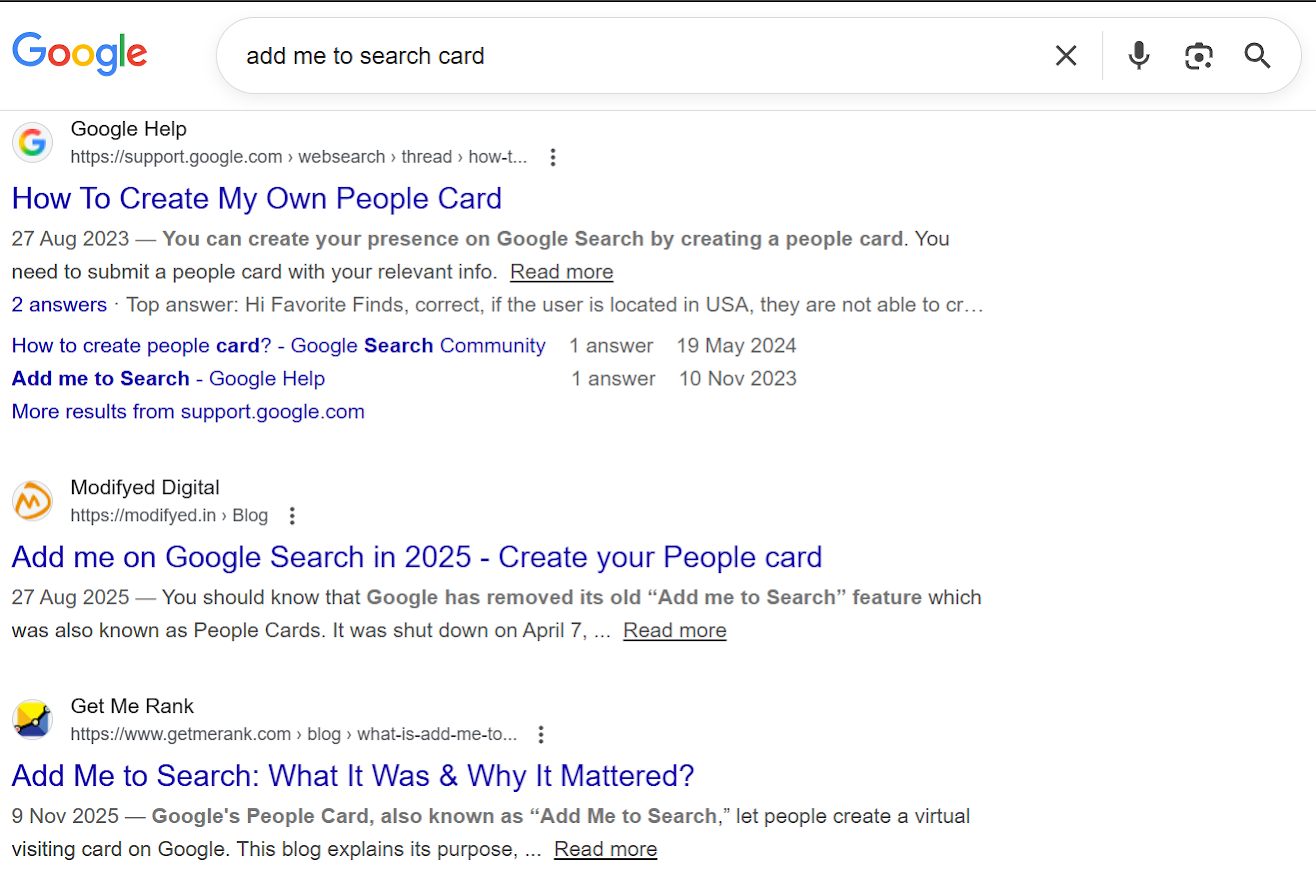
When a user enters specific words or phrases, Google goes beyond simple keyword matching. Instead of reading the text literally, Google uses semantic understanding to interpret the meaning and context behind the words.
For example, typing “best time to water plants morning or evening” doesn’t need to include the word benefits or why. Google understands the intent and shows explanations, research articles, gardening guides, and expert discussions.
Google’s algorithms also analyze:
- Search history (if enabled)
- Patterns from millions of similar searches
- Real-time trending data
- Regional and language-based context
This ensures that even short, unclear, or grammatically incorrect inputs still lead to the right answers. It makes the act of choosing “search Google” more forgiving and accessible for all levels of users.
Searching Within a Website Using Google
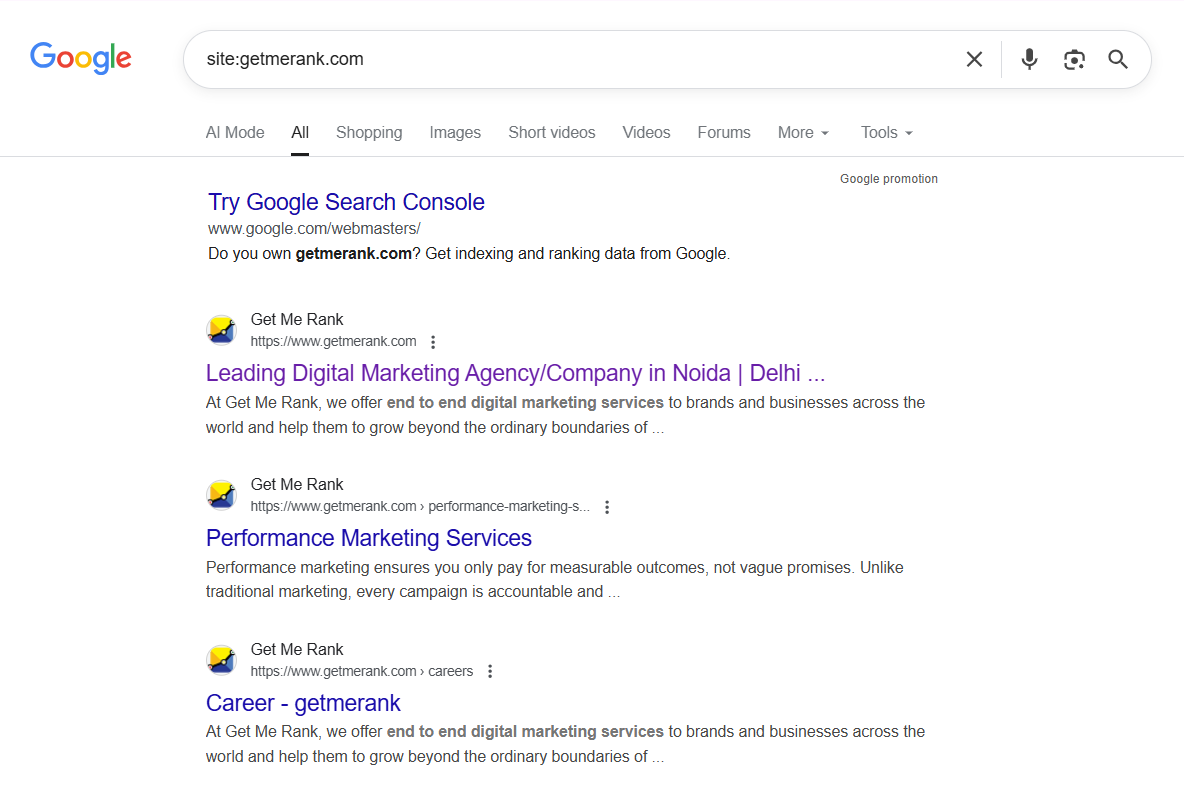
There are many situations where the user knows the website but cannot locate the needed page – especially with blogs, news portals, or large resource sites.
Using the site: operator gives Google the instruction to search inside a specific website.
Example:
site:getmerank.com digital marketing services
Google responds by:
- Filtering out every external page
- Showing only relevant content from Healthline
- Sorting results by usefulness
This approach is faster than scrolling through navigation menus or relying on a site’s internal search, which is often limited.
Professionals, students, and researchers use this operator heavily because it turns Google into a precise content locator – making the search Google pathway incredibly efficient when dealing with large websites.
Google Autocomplete and Predictive Suggestions
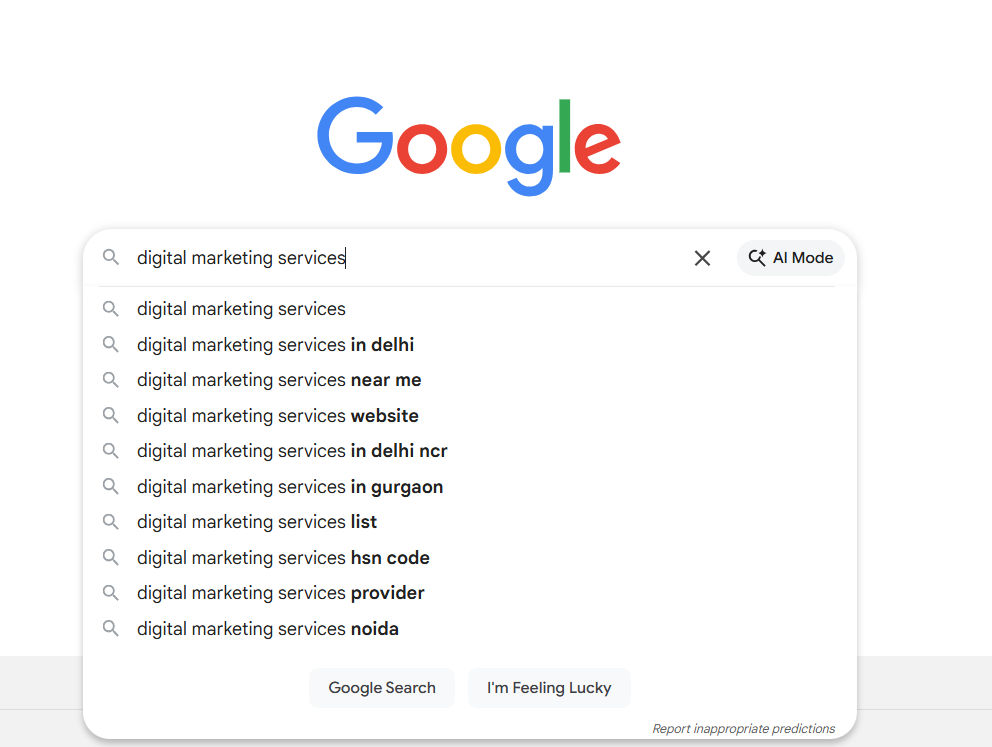
Autocomplete is one of the quietest yet most powerful features built into the Omnibox. It reduces mental effort by predicting what the user is trying to search based on patterns and behaviors collected over time.
Google generates autocomplete suggestions using:
- Frequently searched queries worldwide
- Popular searches in the user’s region
- Personal search history and browsing habits
- Trending or real-time events
- Linguistic predictions
For instance, typing “how to make” instantly generates options like “how to make pancakes,” “how to make PDF editable,” or “how to make money online,” depending on trends and personal history.
Autocomplete benefits users by:
- Cutting down typing time
- Ensuring more accurate queries
- Helping users phrase questions they weren’t sure how to ask
- Correcting spelling or grammar issues automatically
It makes the “search Google” part of the Omnibox feel intuitive and almost conversational.
Finding Information Using Voice Search

Voice search expands access by allowing users to speak naturally instead of typing. Google interprets tone, phrasing, accents, and informal speech patterns to extract meaning.
For example:
Saying “What’s that movie with the blue aliens?” still brings up Avatar, even without naming the title.
Voice search uses:
- Speech recognition
- Natural language processing
- Context predictions
This feature is especially helpful on mobile devices, in multitasking situations, or when the user doesn’t know the exact words to type. It turns the Omnibox into an on-the-go assistant capable of responding instantly.
Searching with Images Using Google Lens
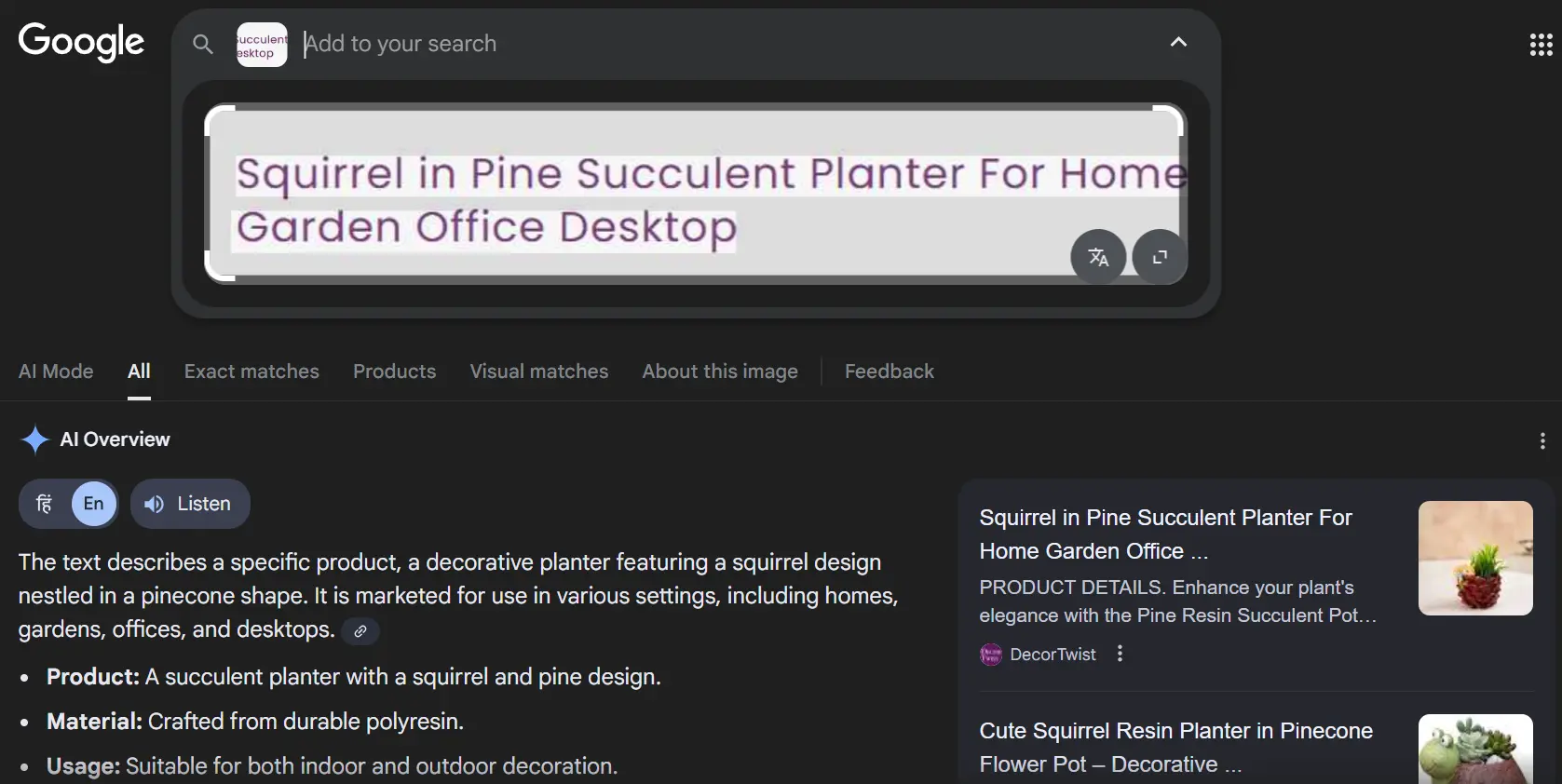
Google Lens introduces a visual dimension to search. Instead of typing or speaking, users can upload an image or point their camera at an object.
Lens can:
- Identify physical objects such as plants, gadgets, animals, or food
- Suggest shopping options for fashion or home products
- Translate text on menus, signs, or documents
- Extract text from handwritten notes or printed material
- Recognize landmarks and artworks
This is incredibly useful when the user doesn’t know what something is called. Instead of guessing keywords, Lens allows the object itself to become the search query. It improves the search experience dramatically, especially in real-world scenarios like traveling, shopping, or troubleshooting.
Chatting with Gemini Directly from the Address Bar

The integration of Gemini, Google’s AI model, turns browsing into an interactive experience. Instead of only showing search results, Gemini can:
- Answer open-ended questions
- Clarify confusing topics
- Summarize long webpages
- Provide step-by-step explanations
- Offer recommendations and insights
- Assist with research from within the browser
This transforms the Omnibox from a passive search field into an AI-powered conversational assistant, blending real-time reasoning with Google’s database of information.
Users no longer need to search multiple pages to understand something deeply—Gemini can provide context-rich answers instantly.
Discovering Related and Exploratory Search Results
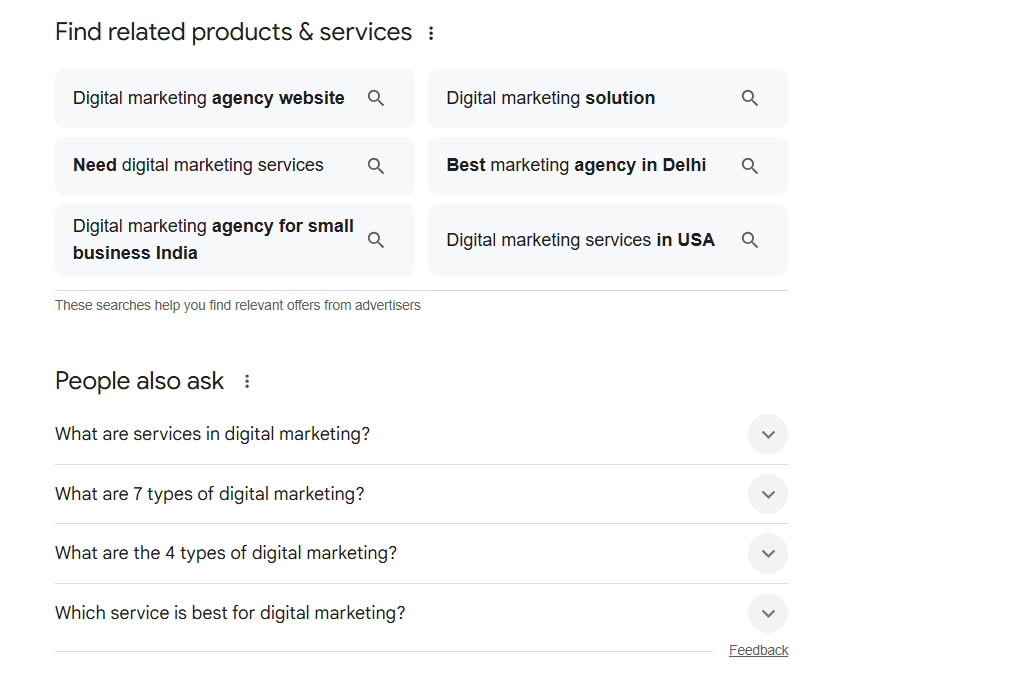
Google doesn’t stop at providing one answer. It also predicts what users may want to search next by offering:
- “People also ask” suggestions
- Related searches
- Additional topic clusters
- Alternative interpretations of the query
- Refinements to broaden or narrow the search
For example, searching “digital marketing services in India” may also surface related topics such as SEO packages, social media marketing, PPC advertising costs, local SEO services, or lead generation strategies. These guided pathways help users understand the full scope of digital marketing offerings, compare service types, and make informed decisions – without needing to search for each service individually.
This exploratory system turns the Omnibox into a learning tool, guiding users step-by-step into deeper information.
Helpful Google Search Operators You Should Know
“keyword”
Example: “digital marketing services”
Finds websites containing the exact phrase, ideal for precise searches.
site:
Example: site:getmerank.com seo services
Searches within a specific website to find relevant pages.
-word
Example: seo tutorial -google analytics
Excludes unwanted terms to refine search intent.
OR
Example: resume template OR cv format
Shows results for either term, useful when exploring options.
filetype:
Example: seo proposal filetype:doc
Finds downloadable documents like PDFs or Word files.
* (Wildcard)
Example: how to improve * skills
Allows Google to auto-fill missing words with variations.
related:
Example: related:getmerank.com
Discovers websites similar in niche or audience.
define:
Example: define:digital marketing
Instantly shows definitions and explanations.
How AI and Predictive Search Are Changing the Way We Search
Search engines are no longer simple tools that match keywords to web pages. Modern search – powered by AI and predictive technologies—works more like an intelligent assistant that understands context, anticipates intent, and suggests information proactively. Every time someone begins typing in the Omnibox, whether choosing to search Google or type a URL, AI quietly analyzes behavior, patterns, and meaning to guide them toward the most accurate results.
In earlier years, search relied heavily on exact keyword matches. Today, Google looks at what the user actually means, even if the input is incomplete or imperfect. This shift has changed how people look for information and how businesses approach SEO. Instead of scrolling through several pages, users often get what they need immediately—sometimes before they finish typing. AI shortens the gap between a question and a useful answer.
Here are the major ways AI and predictive technologies are reshaping the search experience:
1. Understanding Intent Instead of Just Keywords
AI focuses on the meaning behind the words rather than taking queries literally. It recognizes natural language, alternate wording, and context, allowing Google to produce accurate results even when the query is casually written.
So if someone types “wifi keeps dropping why,” Google still returns practical guides and explanations. This makes the Omnibox feel more intuitive and easier to use, even for those unsure how to phrase their search.
2. Predictive Search That Anticipates What Users Mean
The moment a user starts typing, Google tries to guess what they want next. These predictions come from trending topics, local behavior, personal history (if enabled), and common query patterns.
Predictive search helps by:
- Reducing the amount of typing required
- Suggesting clearer or more relevant phrasing
- Fixing spelling mistakes automatically
- Highlighting useful options before the query is complete
This is why even a few letters often bring up surprisingly accurate suggestions.
3. Instant Answers and Zero-Click Results
AI allows Google to present direct answers at the top of the page, so in many cases, users don’t need to open additional tabs or browse through multiple sites. These instant responses include definitions, short explanations, calculators, summaries, and fact boxes.
This makes the search process quicker and more straightforward, especially for simple questions.
4. Personalized Search Results for Each User
AI personalizes results based on browsing patterns, location, device type, and past interactions. This means two people searching for the same phrase can see different results, each tailored to their habits and needs.
This personalized approach improves the overall experience for those who choose to search Google, ensuring results feel more relevant and timely.
5. Conversational and Generative AI Experiences
Search is no longer limited to typing a single question. With conversational AI, users can ask follow-up questions, request explanations, or get summaries—all in a natural back-and-forth style.
This turns search into an ongoing interaction, similar to speaking with someone who can clarify things, break down complex ideas, or provide guidance instantly.
6. Changing Browsing Behavior and SEO Expectations
AI-driven results and quicker answers are influencing how people browse the internet. With predictive suggestions and summaries, users often reach information faster and with fewer steps.
This shift also influences how websites need to present information. SEO strategies increasingly focus on clear, meaningful content that AI can understand, categorize, and surface effectively.
7. Blurring the Line Between Search and Learning
AI now helps users go beyond their initial query by offering related questions, helpful pathways, and additional angles on the topic. Instead of manually refining the search multiple times, users get natural starting points for understanding something more fully.
This creates a browsing experience where:
- Searches feel more natural and fluid
- Users gain clarity without extra effort
- Information becomes easier to navigate
AI essentially turns the Omnibox into a tool that not only answers questions but also helps users understand topics with less friction.
How to Customize and Fix Common Google Search Bar Issues
The Google Search Bar (or Omnibox) is designed to work smoothly without much user input, but at times it may behave differently—showing outdated suggestions, loading slow, not syncing properly, or misinterpreting searches vs. URLs. The good news is that most issues are simple to resolve, and Chrome offers several customization options to shape how the search bar behaves. Whether someone chooses to search Google or type a URL, these adjustments help improve accuracy, speed, and overall browsing comfort.
Below is a clear breakdown of how to customize the search bar and troubleshoot common problems.
Customizing the Google Search Bar
This section walks you through practical ways to customize the Google search bar, helping improve search accuracy, personalize results, and enhance overall browsing speed and user experience.
1. Change the Default Search Engine
Chrome allows switching between Google, Bing, DuckDuckGo, or a custom engine.
Changing this setting can help if search results behave unexpectedly or if the user prefers a different style of search interpretation.
2. Manage Autocomplete and Prediction Settings
The Omnibox can be personalized to:
- Show fewer predictions
- Offer cleaner suggestions
- Prevent showing personal history
- Disable suggested URLs
This is useful when predictions feel cluttered or irrelevant.
3. Customize Sync Settings
Syncing ensures search suggestions, bookmarks, and browsing history appear consistently across devices.
If sync is enabled, the behavior of search Google or type a URL remains uniform whether on mobile, laptop, or tablet.
4. Remove Unwanted Shortcuts or Suggestions
Outdated or unwanted URLs often appear in the dropdown.
Deleting these individually helps refine the Omnibox so it only shows meaningful suggestions.
Fixing Common Google Search Bar Issues
Sometimes the Google search bar may not work properly. This section explains common problems and easy ways to fix them so you can search smoothly again.
1. Autocomplete Showing Incorrect or Old Data
This usually happens due to stored browsing history.
Clearing cached suggestions and deleting specific past entries often resets the prediction system.
2. Search Bar Lagging or Not Responding Smoothly
Extensions, heavy cache files, or outdated browser versions can slow down the Omnibox.
Disabling unnecessary extensions or updating Chrome usually resolves performance issues.
3. Search Queries Opening as URLs
Sometimes Chrome mistakes a search phrase for a domain name.
This happens when the phrase resembles a URL.
Typing a space before the query or using the “?” shortcut ensures the text is treated as a search.
4. Incorrect Pages Opening Automatically
If old URLs appear every time typing begins, they may be pinned or saved as shortcuts.
Removing them from browsing history or clearing autofill data cleans this behavior.
5. Sync Errors Across Devices
When suggestions or history differ between devices, the sync service may be interrupted.
Re-logging into the Google account or toggling sync off/on usually restores normal behavior.
6. Search Bar Not Using Google for Results
This issue appears when the default search engine accidentally changes.
Switching back to Google in Chrome settings restores the usual search experience.
7. Voice Search Not Working
Microphone permission issues or browser restrictions often cause this.
Enabling mic access in Chrome settings solves the problem in most cases.
When to Reset Chrome Settings
If multiple issues appear at once- lagging, incorrect suggestions, sync errors – a full Chrome reset can help.
A reset returns Omnibox behavior to default settings without deleting bookmarks or saved passwords.
Why Customization Matters
Customizing the search bar ensures the Omnibox behaves the way users want – whether they rely on predictive search, prefer manual typing, or switch between searching Google and entering URLs regularly. Small adjustments can make the browser faster, cleaner, and more aligned with personal browsing habits.
How “Search Google or Type a URL” Improves Your Search Experience
- The unified prompt removes confusion by letting users start typing instantly without deciding whether to search or enter a website address.
- It speeds up browsing by interpreting both keywords and URLs automatically, reducing extra steps and menu clicks.
- Predictive suggestions help refine unclear queries, making it easier to reach accurate results even with incomplete inputs.
- Frequently visited websites appear instantly, allowing quick access without typing the full URL every time.
- Autocomplete recommendations offer clearer and more structured search phrases, improving the quality of results.
- The Omnibox supports different search styles-typing, voice input, and image search-making it flexible for any user.
- Instant answers and smart snippets often provide information directly, reducing the need to open additional tabs.
- Syncing behavior across devices ensures consistent suggestions and faster recall of past searches or sites.
- It creates a smoother, more intuitive search flow by blending discovery, navigation, and prediction into a single field.
- Overall, the prompt enhances efficiency by adapting to different intents, whether someone wants to ask a question or go straight to a familiar page.
Search Google or Type a URL: What Should You Use?
The prompt “Search Google or type a URL” offers two different ways to access information. Search helps when the user needs answers or direction, while typing a URL works best when the destination is already known. The choice depends on clarity and purpose. Here’s a quick breakdown of when each option makes the most sense.
When to Use “Search Google”
- When the exact website is unknown: If someone is researching a topic, learning something new, or looking for solutions, search is the better choice because it offers multiple perspectives and helpful alternatives.
- When looking for comparisons, explanations, or reviews: Google provides varied sources-articles, videos, Q&A responses- that help users evaluate information before making decisions.
- When unsure how to phrase a query: Even incomplete or loosely written questions work well because Google interprets intent and guides the user to relevant results.
- When troubleshooting or asking open-ended questions: Search is superior for how-to queries, guides, definitions, or situations where the answer isn’t tied to a single website.
When to Use “Type a URL”
- When the exact destination is already known: Typing a URL leads directly to the website without going through additional steps or search results.
- When revisiting familiar websites: Sites like email platforms, social media accounts, business dashboards, or online tools are faster to access with direct URLs.
- When avoiding additional suggestions or search interpretation: Direct URLs prevent the Omnibox from guessing intent or offering alternative options.
- When precision matters more than variety: Entering a URL ensures the user goes exactly where intended, without needing to sort through similar domains or ads.
How to Decide Quickly
A simple way to think about it:
- If the end destination is clear → Type the URL
- If the goal or question is broad → Search Google
Or even simpler:
- Use search to understand something.
- Use a URL to reach something.
Both methods are equally valuable, and Chrome combines them into one field so the user doesn’t need to switch between tools. The Omnibox reads intent, adapts to habits, and makes browsing flexible regardless of which option is chosen.
Conclusion
The way we interact with the internet starts with a single choice in the Omnibox-whether to look something up or head straight to a known site. Throughout this article, we’ve seen how Google simplifies that decision by understanding intent, offering intelligent suggestions, and supporting multiple ways to search, from typing and voice input to images and AI-powered assistance.
What this really means is that browsing today is less about knowing the perfect words and more about letting the system guide you toward the right information. Whether you’re researching, completing assignments, navigating daily tasks, or revisiting familiar platforms, the Omnibox adapts to your needs.
In the end, the goal isn’t choosing one method over the other- it’s knowing that both paths work together to make your online experience faster, clearer, and far more intuitive.
Frequently Asked Question
Q: Should I search Google or type or enter a URL?
Search Google when you need answers or don’t know the exact site. Type a URL when you already know the website you want to open.
Q: What does search Google or type a URL mean?
It means you can either look something up on Google or directly open a website by entering its address in the same bar.
Q: What does “type a URL” mean?
Typing a URL means entering a website’s address – like Getmerank.com—to go straight to that site without using search results.
Q: How to search or type a URL?
Type words or questions to search Google. Type a complete website address to open it directly. The Omnibox understands both automatically.
Q: What are the three most common search operators?
The most used operators are “ ” for exact matches, site: to search within a website, and -word to remove unwanted meanings or topics.
Q: Can I use an omnibox for calculations?
Yes. You can type simple math problems – like 50*7 or 120/6—directly in the Omnibox, and it shows the answer instantly.